How to use Goal Seek in Excel for Powerful What-If analysis
When it comes to data-driven decision-making, Goal Seek in Excel stands out as a remarkably practical yet often overlooked tool. Whether you’re projecting sales targets, calculating loan payments, or planning event budgets, Goal Seek simplifies complex calculations by working backward from a desired result. In this comprehensive guide, we’ll explore what Goal Seek in Excel is, how it works, and offer real-world examples to help you master this essential feature.
Table of Contents
What is Goal Seek in Excel?
Goal Seek in Excel is a built-in What-If Analysis tool that allows users to determine the necessary input required to achieve a specific result in a formula. Rather than manually adjusting variables to find the right value, Goal Seek automates the process by iteratively changing a single input until the formula output matches the target value you specify.
To simplify:
- Set Cell: The formula cell whose result you want to control.
- To Value: The target result you wish to achieve.
- By Changing Cell: The input cell Excel will modify to reach your target result.
Unlike Solver, which can handle multi-variable scenarios, Goal Seek focuses on single-variable adjustments, making it straightforward and user-friendly.
Why Use Goal Seek in Excel?
The value of Goal Seek in Excel lies in its ability to:
- Automate “backwards” problem-solving.
- Support strategic forecasting and planning.
- Eliminate trial-and-error guesswork.
- Simplify business modelling, financial planning, and academic calculations.
From students to financial analysts, anyone working with spreadsheets can benefit from this versatile tool.
How to Use Goal Seek in Excel: Step-by-Step Guide
Let’s break down the process of using Goal Seek in Excel with a basic example.
Example 1: Revenue Target Projection
You sell handmade jewelry at $25 per piece. You want to find out how many units you need to sell to reach $15,000 in revenue.
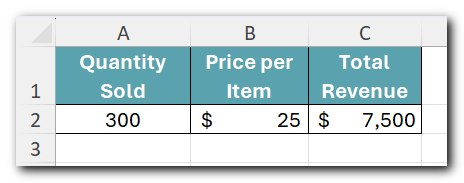
Here’s how to use Goal Seek to solve this:
- Enter your formula:
In cell C2, use the formula:
=A2*B2
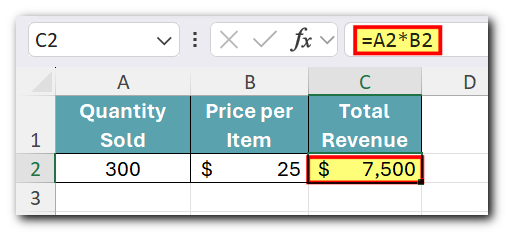
This calculates total revenue.
2. Open Goal Seek:
Go to the Data tab → Forecast group → click What-If Analysis → select Goal Seek.
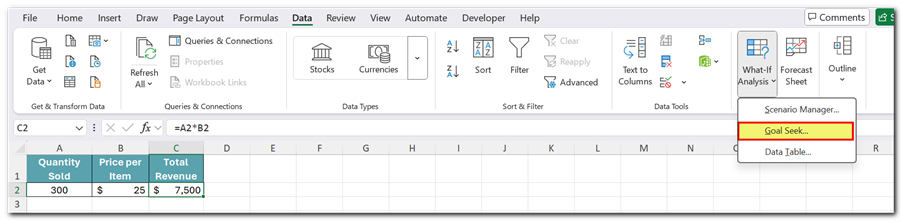
3. Configure Goal Seek:
- Set Cell: C2 (where the formula resides).
- To Value: 15000 (your revenue goal).
- By Changing Cell: A2 (quantity sold).
4. Click OK and let Excel compute the answer.

Result: Excel will update cell A2 to display the quantity required to reach $15,000 in sales—600 units in this case.

Example 2: Loan Payment Calculation
You’re planning a loan repayment and want to determine the monthly payment necessary to settle a $50,000 loan over 5 years at 6% interest.
- Formula Cell: Loan Amountusing PV function.
- Target Value: Desired loan payoff.
- Changing Cell: Monthly payment.
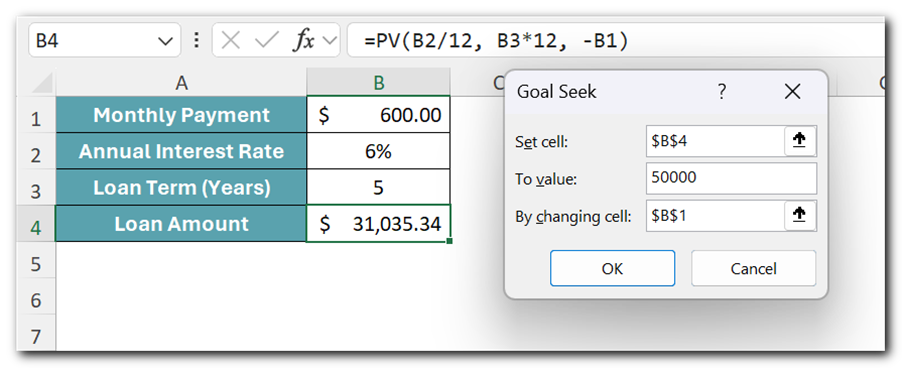
Goal Seek will help you find the required payment amount efficiently.

Example 3: Achieving Average Exam Scores
A student has scores of 65 and 75 in two exams and needs an overall average of 70% to pass. Using Goal Seek:
- Formula Cell: Average of the three scores.
- Target Value: 70%.
- Changing Cell: Third exam score.
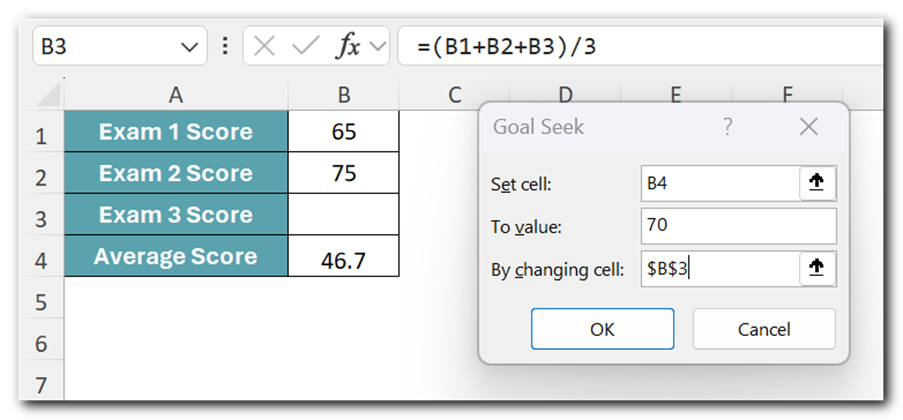
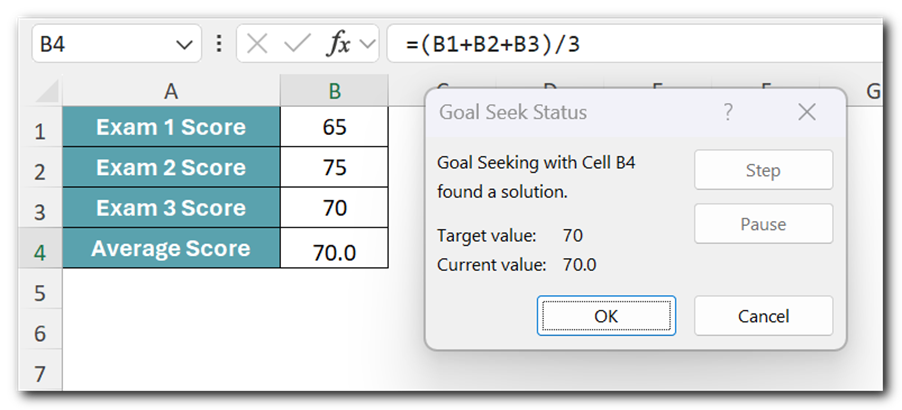
Goal Seek will calculate the score required in the final exam to pass.
Example 4: Cost Reduction Planning
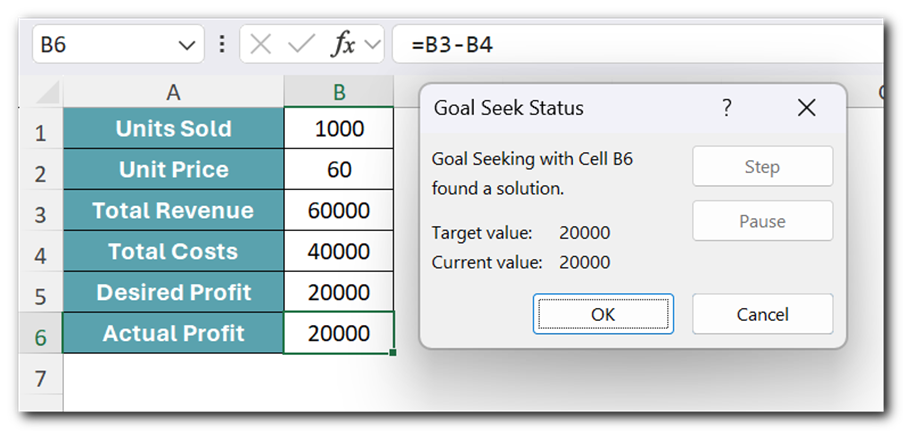
Suppose you want to reduce production costs to meet a profitability goal. Goal Seek can help determine:
- How much material costs need to decrease to hit target profit margins.
- The new selling price required for a specific profit.

Tips for Using Goal Seek Effectively
- Only One Input Variable: Goal Seek adjusts only one input cell. For multi-variable scenarios, consider using Excel’s Solver tool.
- Reversible Changes: To revert to your original data, simply press Ctrl + Z.
- Approximate Solutions: If Goal Seek can’t find an exact answer, it provides the closest possible solution.
- Non-Destructive: Goal Seek doesn’t alter your formula; it only changes the input cell value.
Limitations of Goal Seek in Excel
While incredibly useful, Goal Seek in Excel does have constraints:
- It works with one variable at a time.
- It requires a linear relationship between the input and formula result for optimal accuracy.
- It’s best suited for relatively straightforward scenarios.
For complex optimization models involving multiple variables and constraints, the Solver Add-in is the recommended tool.
Frequently Asked Questions (FAQ) About Goal Seek in Excel
No. Goal Seek can only adjust one input variable at a time.
If your model involves multiple changing variables, you should use Excel’s Solver Add-in instead.
No. Goal Seek only modifies the input cell value. Your formula remains intact and unchanged
If an exact solution isn’t possible, Goal Seek will provide the closest approximate value it can calculate.
Yes! If you wish to revert after running Goal Seek:
- Press Ctrl + Z immediately after.
- Alternatively, manually re-enter the previous input value.
Yes! Advanced users can automate Goal Seek in Excel using VBA (Visual Basic for Applications) for batch operations or repeated scenarios.
Conclusion
Mastering Goal Seek in Excel empowers professionals and students alike to transform static spreadsheets into dynamic forecasting tools. From personal budgeting to corporate financial planning, its capacity to solve backward from a desired outcome makes it a time-saving powerhouse.
Instead of relying on manual guesswork, let Excel work the problem out for you. Once you integrate Goal Seek into your analytical workflows, you’ll wonder how you managed without it.
So, whether you’re adjusting sales goals, predicting exam scores, or streamlining production costs, Goal Seek in Excel is your gateway to smarter, faster, and more accurate decisions.
.