
VBA Code to Delete All Shapes On A Excel Sheet
VBA Code To Delete All Shapes On A Excel sheet
Here is a VBA code which deletes all the shapes from an Excel sheet. Code is simple but you have to be bit careful while using this code as it deletes all the Shapes, Smart Shapes, Charts, Pictures, Objects and Equations from the sheet
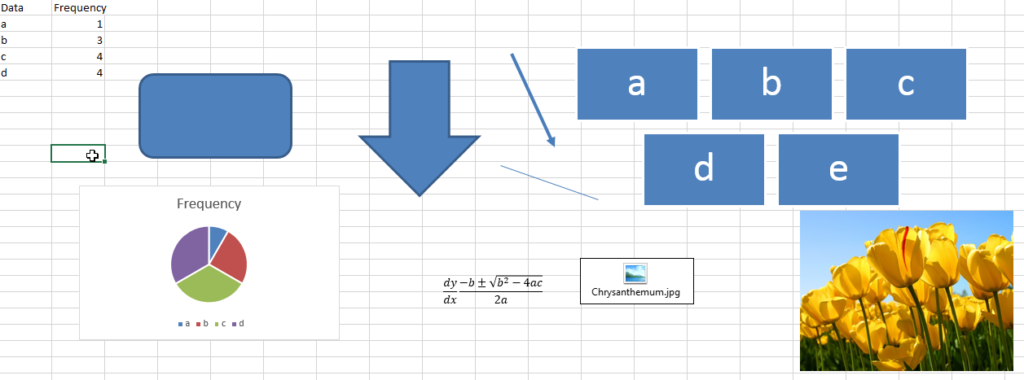
'Following function deletes all the Shapes, Smart Shapes, Charts,
'Pictures, Objects and Equations from the Excel worksheet
Sub DeleteShapesFromSheet()
    'Declare variable
    Dim objShape As Shape
    'Loop through all the shapes from sheet1 and delete
    For Each objShape In Sheet1.Shapes
        objShape.Delete
    Next
End Sub
VBA Code to delete all shapes on a excel sheet follow below steps:
1. Open an Excel file
2. Press Alt+F11
3. Insert a Module (Insert>Module) from menu bar
4. Paste the code in the module
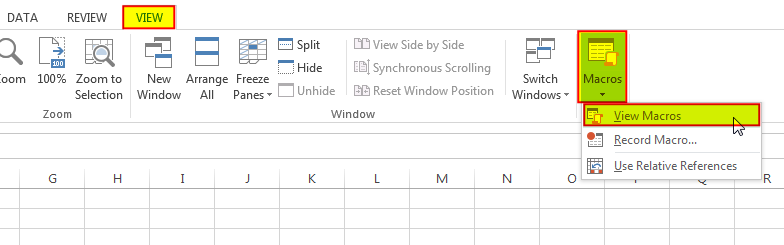
5. Click on ‘View Macros’ option available under View>Macros ribbon
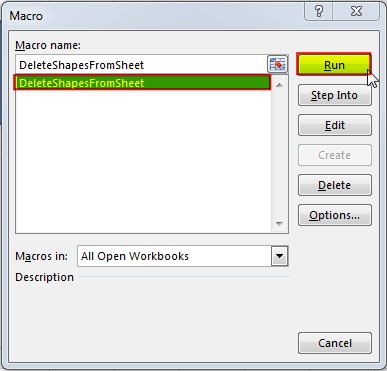
6. Select ‘DeleteShapesFromSheet’ and click on Run
Excluding Certain Shapes
In most cases, you will want to exclude certain shape types from being deleted within your code. Most commonly, you may not want to remove cell comments or charts as (believe it or not) they are considered shapes! You can add an IF statement to test each shape’s type before deleting it in your loop. The following code shows how you can write your VBA:
Sub DeleteAllShapes()
'PURPOSE: Remove All Shape Objects From The Active Worksheet (Excludes Charts/Comments)
'SOURCE: www.TheExcelsirji.com/the-code-vault

Dim shp As Shape

For Each shp In ActiveSheet.Shapes
  If shp.Type <> msoChart And shp.Type <> msoComment Then shp.Delete
Next shp

End Sub