
VBA Code to Sum Cells by Color
VBA Code to Sum Cells By Color
Recently some of our subscribers have requested us to share a VBA code that can sum the cells by its color. To help our subscribers and developers, we are sharing 2 codes that be used to sum the cells with specific color and returns the total sum of the matching color cells
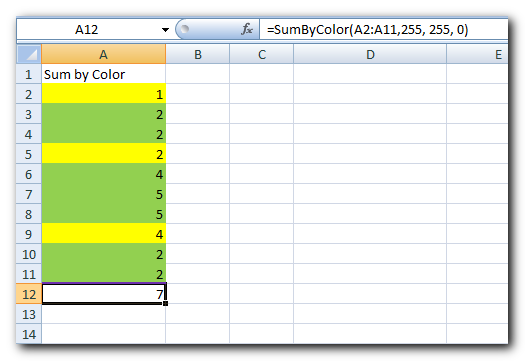
First VBA Code to Sum Cells by Color
Public Function SumByColor(rng As Range, Red As Long, Green As Long, Blue As Long) As Double‘Variable declaration
Dim dblSum As Double
Dim rngCell As Range
‘Loop throught each cell in the range
For Each rngCell In rng
‘Checking and sum color
If rngCell.Interior.Color = RGB(Red, Green, Blue) Then
If IsNumeric(rngCell.Value) = True Then
dblSum = dblSum + rngCell.Value
End If
End If
Next
‘Return the value
SumByColor = dblSum
End Function
Second VBA Code to Sum Cells by Color
Public Function SumByColor(rng As Range, ColorCell As Range) As Double

    'Variable declaration
    Dim dblSum As Double
    Dim rngCell As Range

    'Loop throught each cell in the range
    For Each rngCell In rng
        'Checking and sum color
        If rngCell.Interior.Color = ColorCell.Interior.Color Then
            If IsNumeric(rngCell.Value) = True Then
                dblSum = dblSum + rngCell.Value
            End If
        End If
    Next

    'Return the value
    SumByColor = dblSum

End Function
How can I use this VBA code?
If you want to use this code in your VBA tool, then follow below steps:
Step 1: Open the Excel file in which you want to copy this code
Step 2: Press Alt+F11 to open VBA editor
Step 3: Insert a new module from Insert > Module menu
Step 4: Paste the code in the module
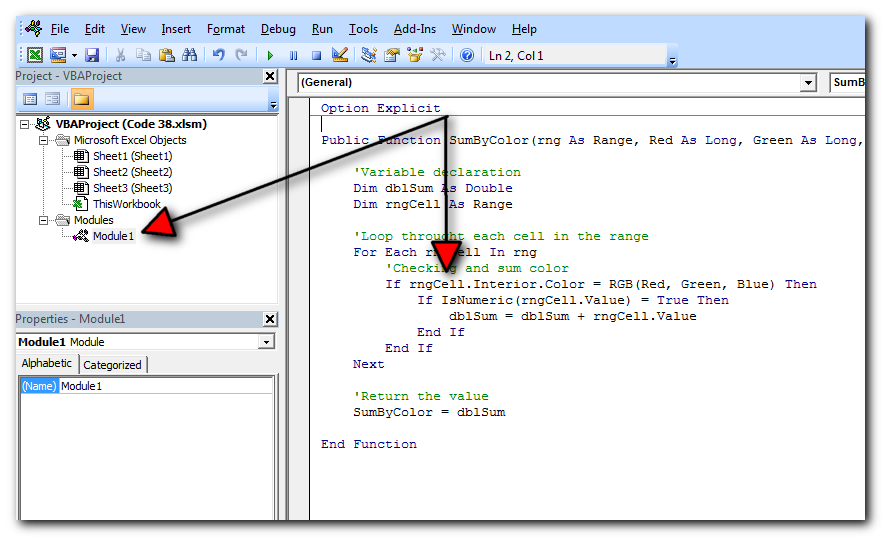
Step 5: Now you are ready to use this code as Excel Function/Formula
Step 6: Type the formula in the cell where you want to get the sum specific colored cells
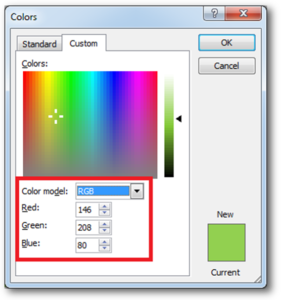
First Code Example: =SumByColor(A2:A11,146, 208, 80)
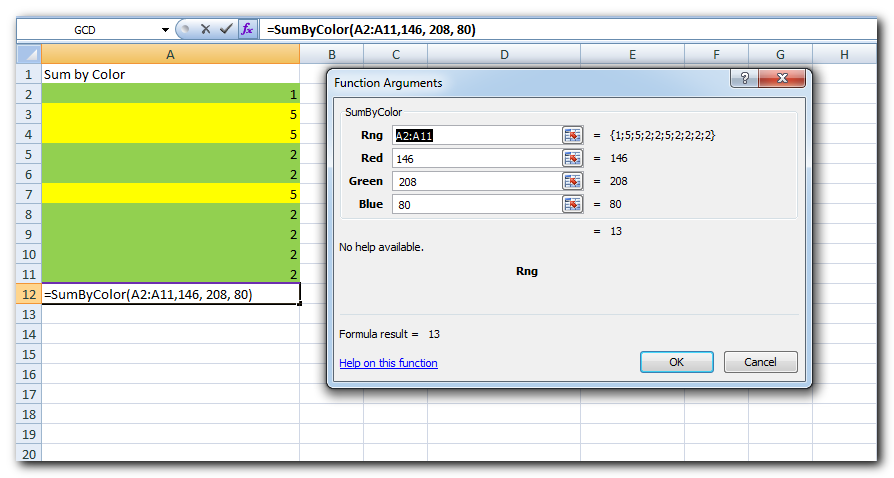
The first parameter of the formula is the range from which you want to sum the specific color cells. The second, third and fourth parameters are RGB code of the color.
Second Code Example: =SumByColor(A2:A11,A3)
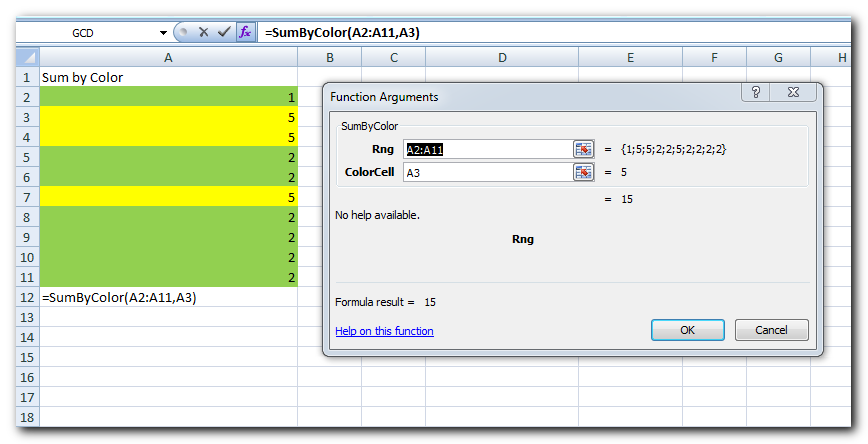
The first parameter of the formula is the range from which you want to sum the specific color cells. The second parameter is the cell from which you want to compare the color.
Step 1: Select the cell which contain the color you want to use
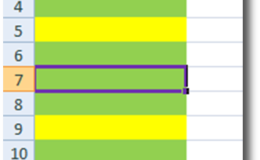
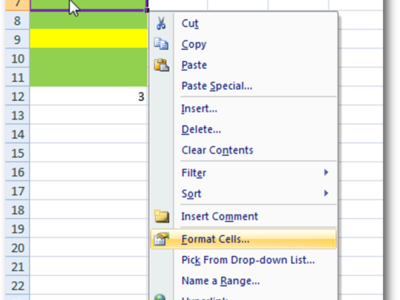
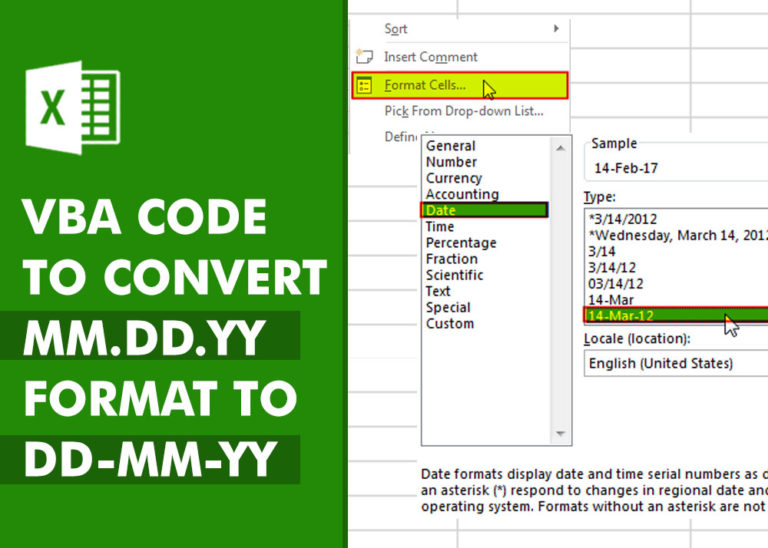
Step 2: Right click and select ‘Format Cells…’
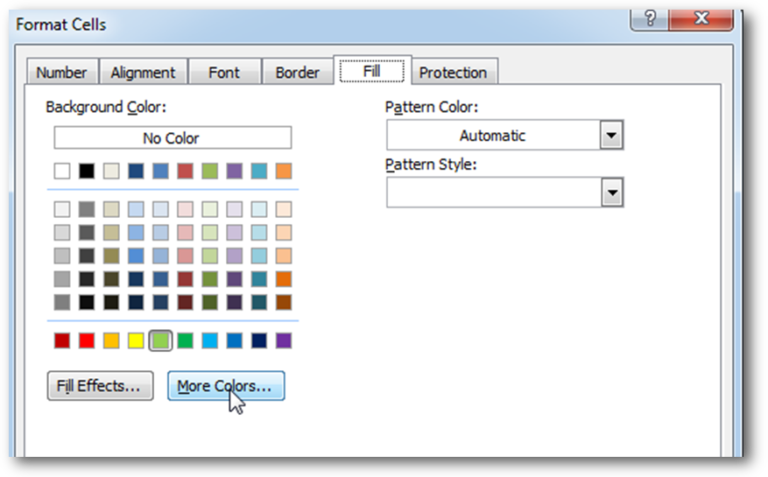
Step 3: In the Format Cells dialog box go to ‘Fill’ tab and click on ‘More Colors…’
Step 4: That’s all, in the ‘Color’ dialog box, you can view the RGB (Red, Green, Blue) codes of the color
Thanks for reading the article, subscribe us to get more VBA tricks




Hi,
How to Count (D71) CONDITIONALLY FORMATTED RED COLOR CELL only (D40:D70)?
Pls guide…
Thanks
If you want to count from single cell then formula will be =SumByColor(D71,256,0,0)